Create an application
Create an application in the Tuix dashboard. Every agent lives inside one.
An application is your agent. It holds its prompt, its knowledge base, its connected APIs (MCP servers) and its own chat and session endpoints. You create one application per agent you want to run.
Create an application
In the dashboard, open Applications and click Add new app.
Select the AI Model your agent will use. If you leave it empty, the platform's default model is used.
Click Add. The new application appears in the table.
Click the Open application details icon on the application's row and start configuring the agent.
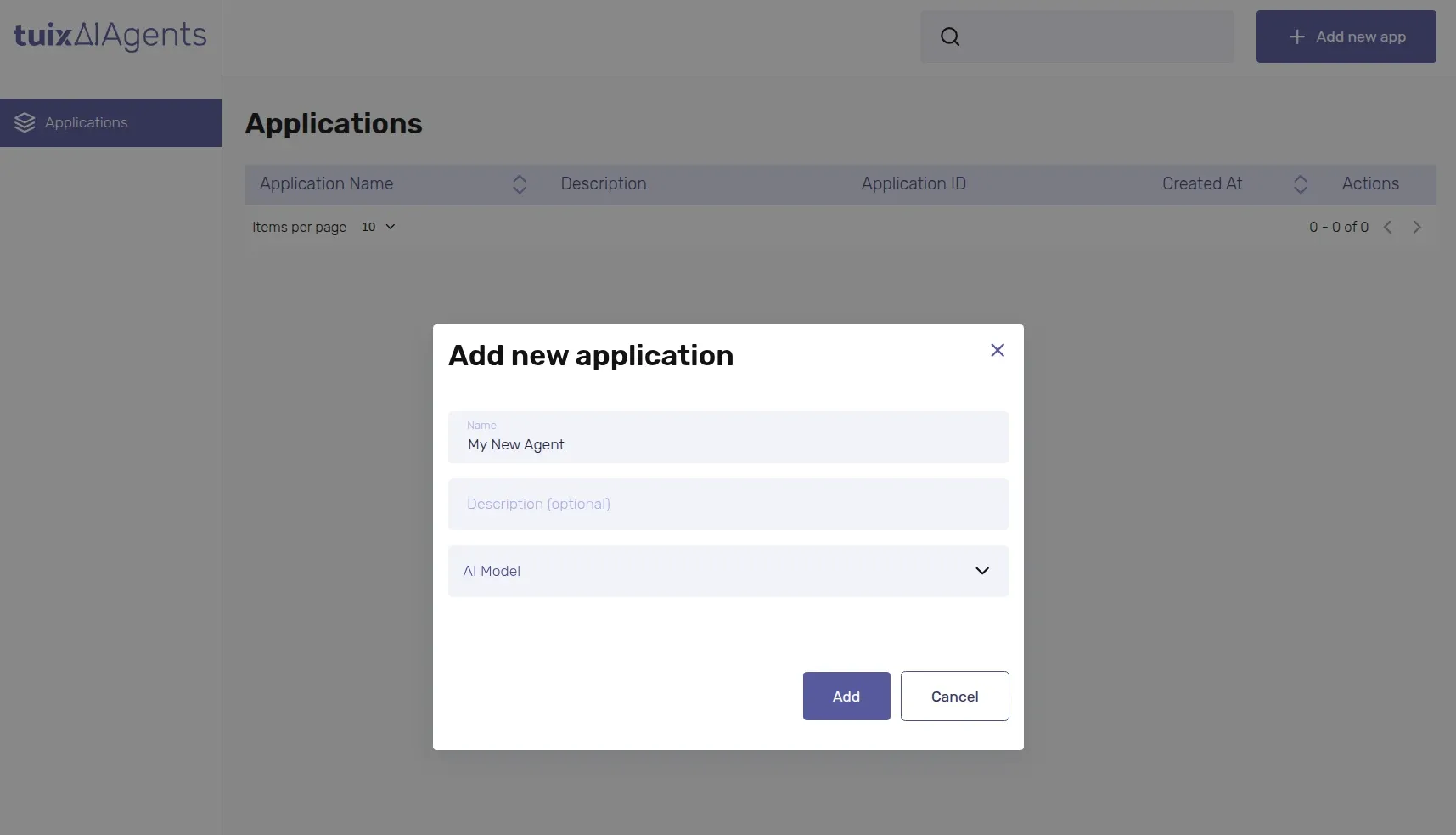
| Field | Required | Description |
|---|---|---|
Name | Yes | Name of the application, e.g. "Support Bot". |
Description (Optional) | No | Free text, only shown in the dashboard. |
AI Model | No | Language model that powers the agent. Defaults to the platform's default model. You can change it later by editing the application. |
Creating an application only reserves it. The agent has no prompt, no knowledge and no connected APIs yet — configure those next in Prompt and initial message, Knowledge and MCP Servers.
What belongs to an application
Everything you set up afterwards, the system prompt, the initial message, the RAG configuration, the MCP servers, and the chat/session endpoints, is scoped to this one application. Nothing is shared between applications, so you can run unrelated agents (e.g. a support bot and an internal automation) side by side without them affecting each other.
API keys are account-wide, not per application (see API keys), but each key can only be used to authenticate against applications that belong to the same account.