MCP Servers
Give your agent real actions to take, generated from your own API.
An MCP server is what turns your API into actions the agent can actually
take, not just text it can talk about. MCP stands for
Model Context Protocol, an open standard
that exposes a set of callable tools (e.g. get_employees,
create_invoice) over a common interface that any compatible agent can call.
In the Tuix dashboard, you don't have to build one by hand: point the MCP Servers tab at your OpenAPI documentation and the platform generates a working MCP server from it, one tool per endpoint you mark. The full generation flow, security mapping and connection options are covered in the MCP Server section; this page is the per-application view of it.
In this application
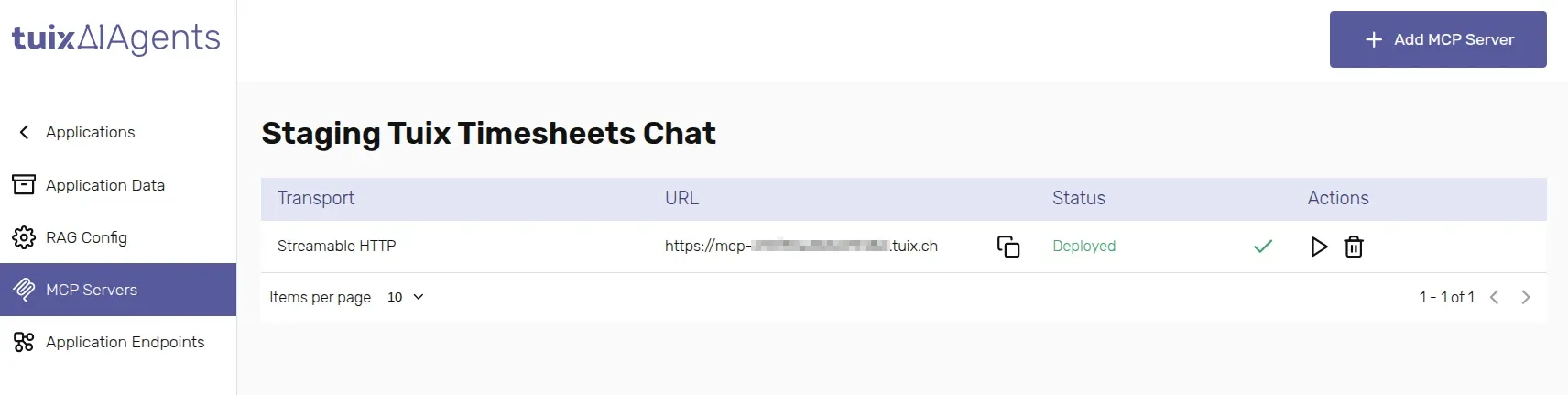
Open the application's MCP Servers tab and click Add MCP Server.
Enter the public URL of your API's OpenAPI/Swagger document and confirm.
Watch the status move from Generating to Deployed (or Failed). See Generate from OpenAPI for what happens during generation and how to prepare your OpenAPI document.
Once a server reaches Deployed, it is automatically available to this application's agent, no extra step. The same server can also be called by external agents directly, see Connect with agent.
The table lists every MCP server attached to the application, its transport, its URL (with a copy button) and its status. Deleting one here removes it from this application and, unless another application still uses the same underlying server, tears down the deployed server itself, so this action cannot be undone.
Test the MCP
You can try a deployed MCP server directly from the dashboard, without connecting an agent. Click the Test MCP Server icon on the server's row to open the test dialog.
List tools
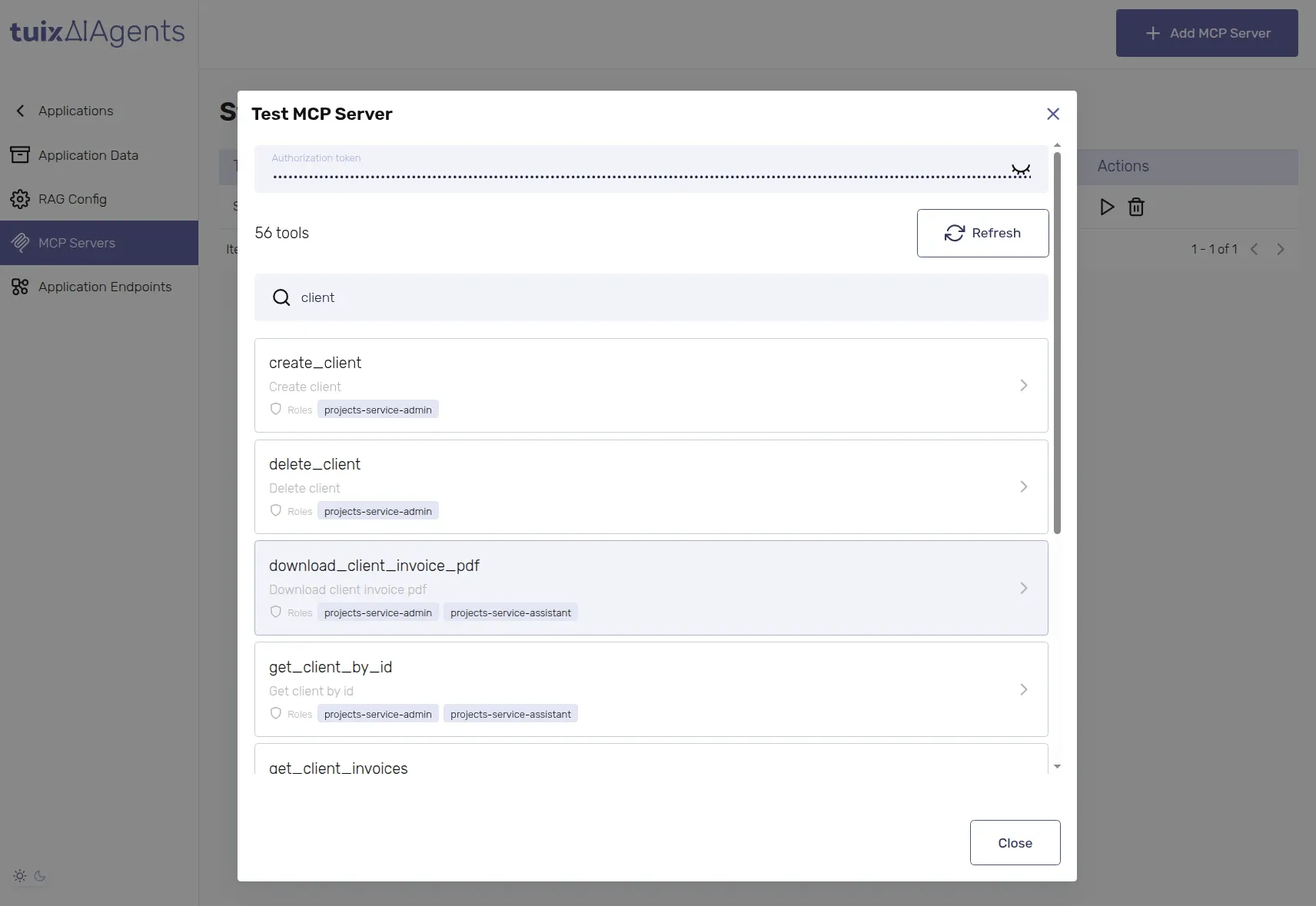
If the server requires authentication, paste the token issued for it
into Authorization token. It is sent to the MCP server as
Authorization: Bearer <token>. Leave it empty for servers without
authentication (see Authorization).
Click List tools. The dialog shows every tool the server exposes, with its description and the roles allowed to call it.
Use the search field to filter tools by name or description, and Refresh to list them again (e.g. after changing the token).
Call a tool
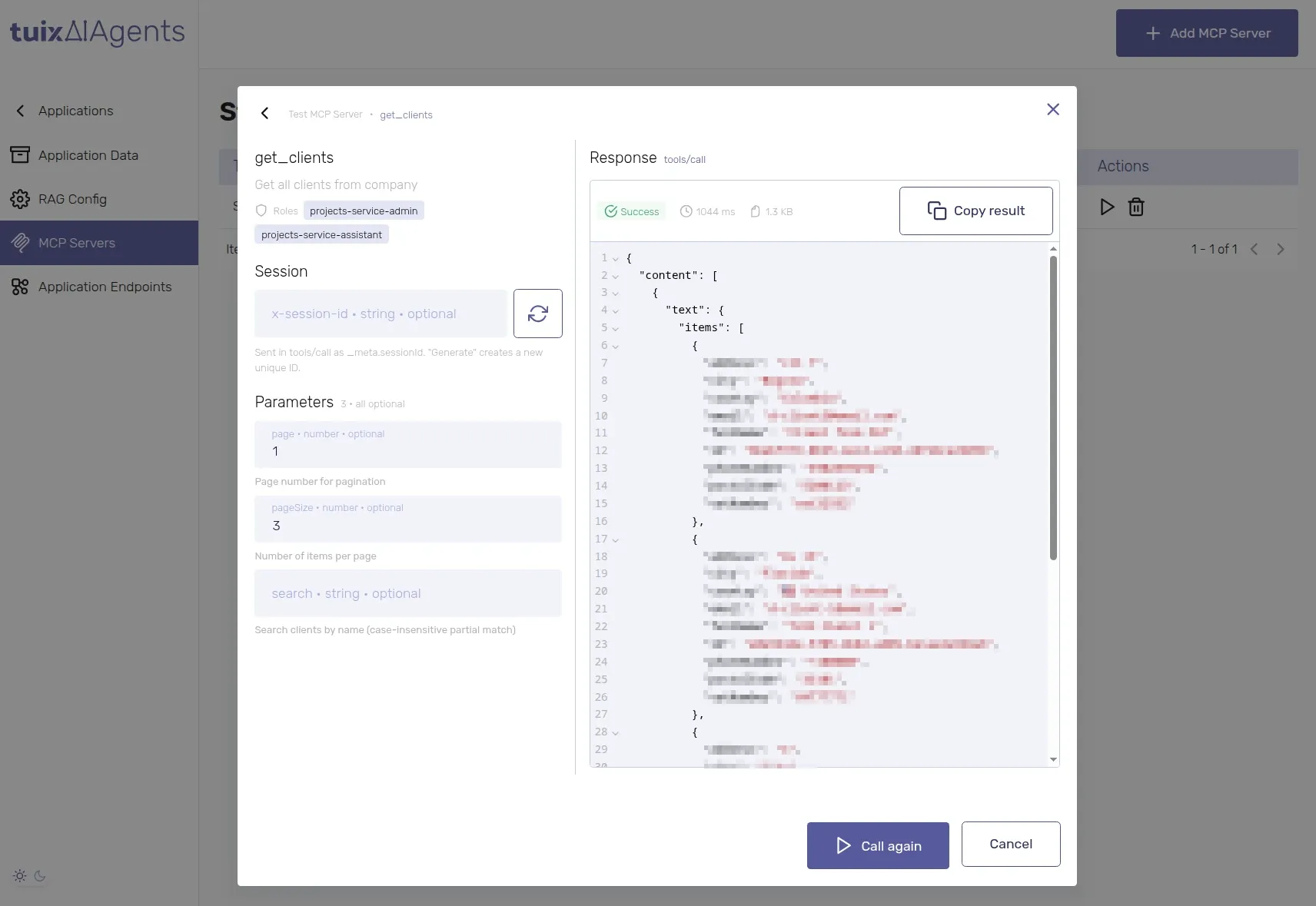
Optionally set a Session ID, sent in tools/call as
_meta.sessionId. Use the refresh button to generate a new unique ID.
Fill in the tool's Parameters. Required fields are marked; tools without arguments need no input.
Click Call tool. The Response panel shows the JSON result with its status (Success or Failed), duration and size. Use Copy result to copy it, or Call again to repeat the call.
Calls made from the test dialog run against the real deployed server and your real API, exactly as an agent call would. Be careful with tools that create, update or delete data.